TABLE OF CONTENTS
- Install License from Polarion UI
- Install License via Filesystem
- Polarion Cluster Setup
- Configure Named (Active) Users
- Configure Concurrent Users
- Special named/concurrent user group behavior when both Risksheet & Powersheet are installed on the server
- No license behavior
So you obtained the license file via email, and now you need to install it. The procedure is simple. Please follow these steps:
Install License from Polarion UI
Most Nextedy products (currently Risksheet, Powersheet, Gantt, Planningboard, Checklist) allow to easily install the license via the Polarion administration interface.
1. Go to Polarion Administration - Nextedy PRODUCTNAME - License
2. There is a new interface with a dialog for easy upload of the license file.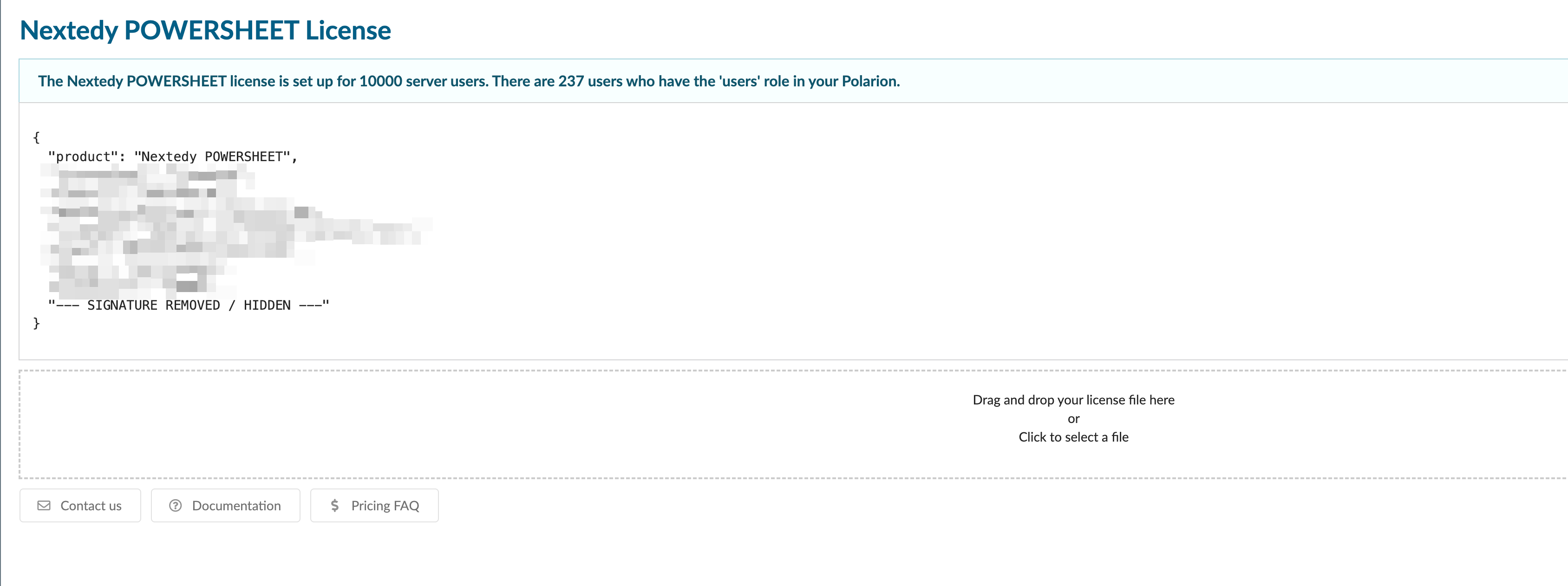
3. Just drag and drop or select a file with the license, and it will be automatically uploaded and added under the correct repository.
4. In case the license file is invalid, you'll get a pop-up message explaining what went wrong with its upload process.
5. If applicable to your product: Once the license is uploaded, follow the instructions to configure the Named/Concurrent user list (see instructions below, as well as on the License page itself)
Install License via Filesystem
The older versions of our products allow the following way of license deployment.
- Verify your license file name
Ensure your license file ends with 'PRODUCTNAME_lic.json'
(e.g. YOURCOMPANY-gantt_lic.json, or YOURCOMPANY-risksheet_lic.json ...) - Copy the license file
Move the license file to the following folder on your Polarion server: `[POLARION_INSTALL]/polarion/license`
(This is the same directory where the main Polarion license is stored.) - Reload the license
You do not need to restart the Polarion server.
Simply navigate to:
Polarion Administration > Nextedy PRODUCT_NAME > License.
This action will reload the license file. - Active user selection (if applicable)
Some Nextedy products require a selection of active users.
In that case, open Polarion Administration > Nextedy PRODUCT_NAME > License page and follow the instructions there, or refer to the steps in the Configure Named (Active) Users section below.
Polarion Cluster Setup
In case you have a Polarion cluster setup (with multiple Polarion nodes), you must place the license file on each node to:
`[POLARION_INSTALL]/polarion/license`
In case of a cluster setup, please keep in mind that license upload to each node is a must when adding the new license from the Polarion UI as well. So it is recommended to either upload it through the filesystem, or alternatively via connecting to the different clusters and adding the license via UI.Configure Named (Active) Users
To configure the named users:
- Create the user group (Polarion Administration > User Management > Groups )
or global user role (Polarion Administration > User Management > Roles )
with the ID: nextedy_PRODUCTNAME_users. - Add the users who should be assigned an active user license to this group or role.
- To reload the updated configuration, reopen the license page:
Polarion Administration > Nextedy PRODUCT_NAME > License.
Important: If you don’t perform this reload action, the newly added users will not receive an active license.Configure Concurrent Users
To configure the concurrent users:
- Create the user group (Polarion Administration > User Management > Groups )
or global user role (Polarion Administration > User Management > Roles )
with the ID: nextedy_PRODUCTNAME_users_concurrent - Add the users who should be assigned an active concurrent user license to this group or role.
- To reload the updated configuration, reopen the license page:
Polarion Administration > Nextedy PRODUCT_NAME > License.
You can add more users in the concurrent users group than the number of the licenses you purchased. The concurrent license will be assigned to the users from that list who log in the system first.
Special named/concurrent user group behavior when both Risksheet & Powersheet are installed on the server
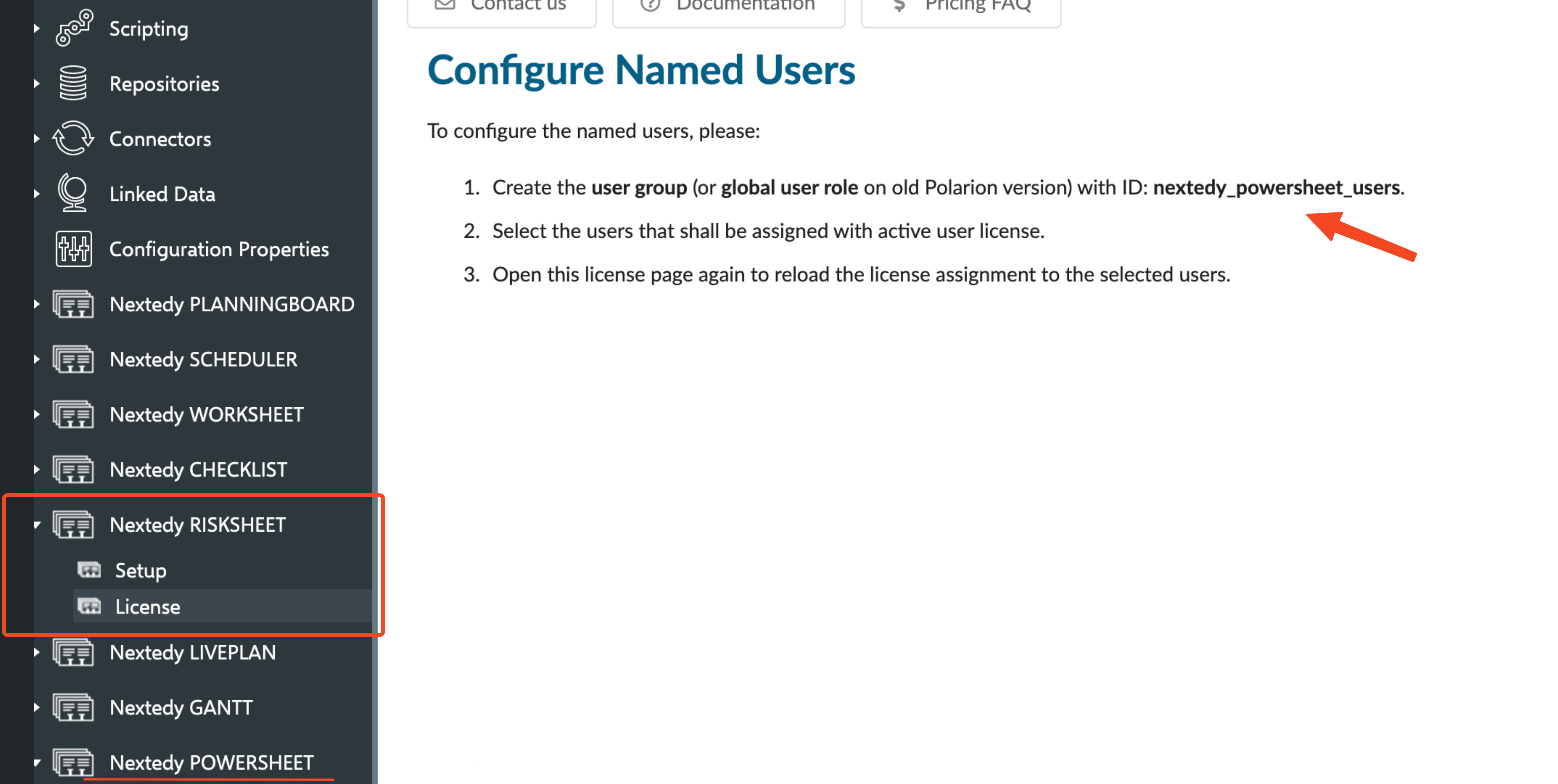
If on your server you have a production license for both Risksheet & Powersheet, you need to configure only one Powersheet users group (named or concurrent, based on your license).
No need to create a separate group for Risksheet, it will be ignored.
This behavior occurs because the RISKSHEET active user license is provided free of charge, as it is bundled with POWERSHEET active user licenses.
As a result:
Both RISKSHEET and POWERSHEET check nextedy_powersheet_users or nextedy_powersheet_users_concurrent groups
No license behavior
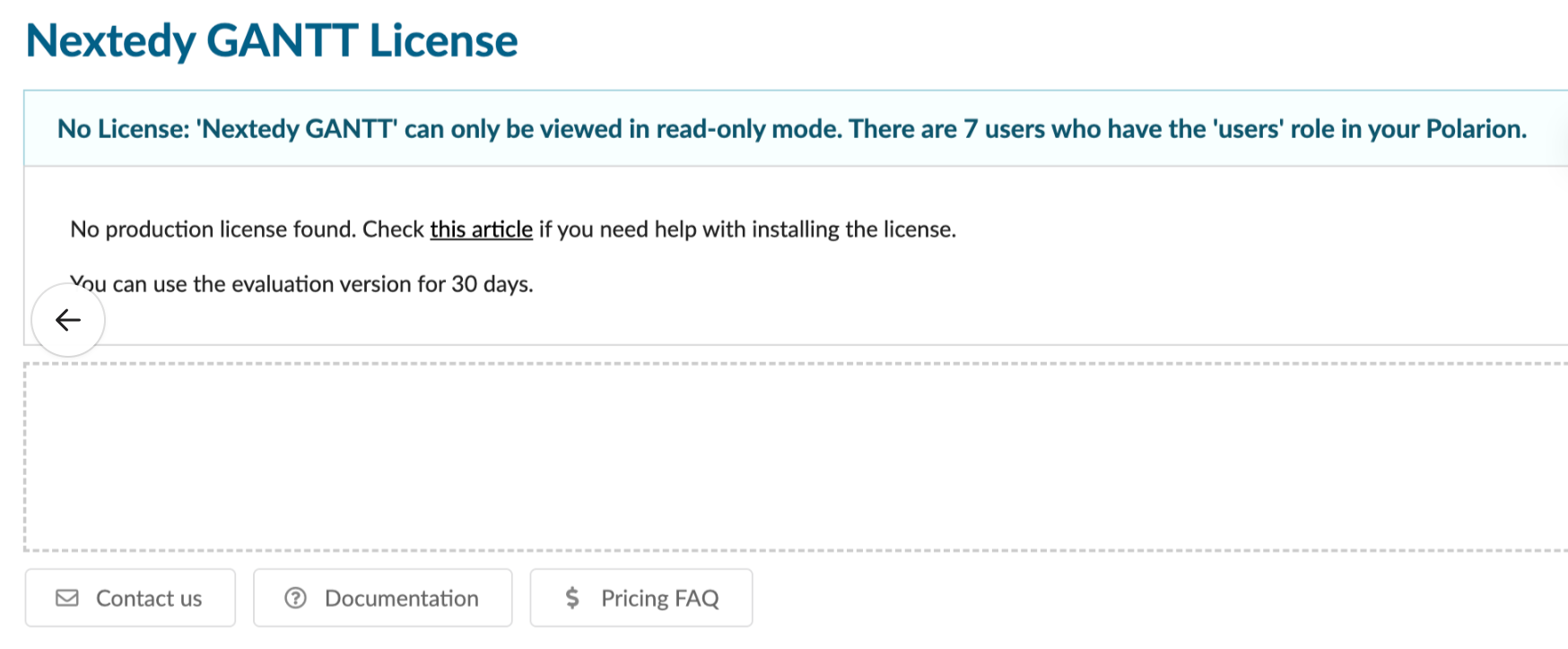
If you don't have any production or evaluation licenses added for the specific Nextedy product, the product will be shown in the read-only view. This way, you'll see all the content, but you will not be able to actively manipulate the data.
The license page will signalize to you that there is no active license.
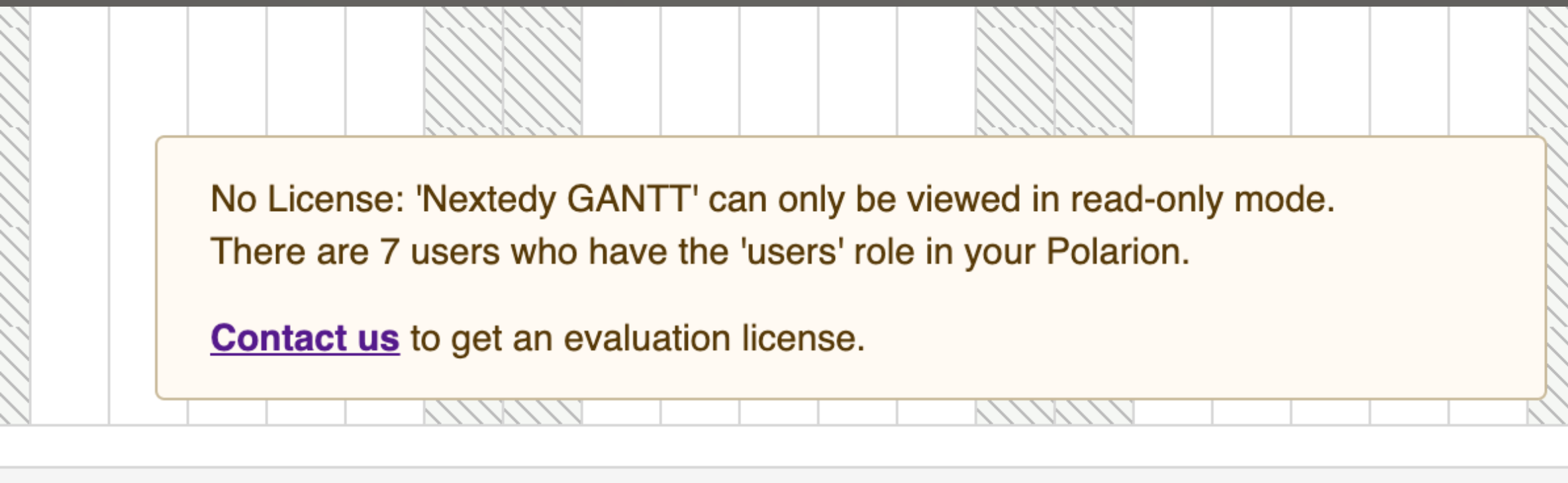
On the product page itself, there is a similar pop-up.
You can request an evaluation license by following the 'Contact us' link.
The license upload procedure is the same for both production and evaluation licenses. However, once the evaluation license expires, the product will switch back to the read-only view. You'll see the pop-up notification if the license expires.For any assistance, please don’t hesitate to reach out by submitting a ticket here.
Was this article helpful?
That’s Great!
Thank you for your feedback
Sorry! We couldn't be helpful
Thank you for your feedback
Feedback sent
We appreciate your effort and will try to fix the article