Powersheet enforces a multi-layered permission model that mirrors and extends Polarion's native access control system. This means that what users can see, create, edit, or delete in a sheet is always consistent with the permissions defined in Polarion.
Permissions are evaluated at two levels: metadata (what operations are allowed on work item types, properties, and relationships based on the domain model configuration) and data (dynamic, per-item restrictions driven by workflow states, custom sets, and document approval status).
This is particularly useful in environments where different teams or roles need tightly controlled access to specific parts of a document — for example, preventing certain users from modifying requirements that are under review, or restricting who can create links between work item types.
TABLE OF CONTENTS
- What Controls Your Permissions
- Metadata Permissions (Model-Driven)
- Additional use cases
- Data Permissions
- Polarion Permission Evaluation Model
- Known Limitations
What Controls Your Permissions
Effective permissions in Powersheet are resolved from two sources, evaluated in this order:
- Polarion Permissions — User roles (global, project, dynamic) determine what actions are allowed on which items and fields. Applies to both metadata and data.
- Powersheet Configuration — The Powersheet model may further restrict actions for specific entity types or contexts. Applies to metadata only.
Important: Powersheet never grants more access than Polarion allows. Sheet configuration can only restrict permissions further — it can never escalate them.
A note on licenses:
- The Powersheet license does not propagate to permissions — it is handled separately at the Document level
- The Polarion license is propagated to permissions
Metadata Permissions (Model-Driven)
Metadata permissions ensure that Powersheet respects Polarion's type-level and model-level permission rules — what a user can do based on entity type configuration in the Powersheet model, prototypes, and project roles.
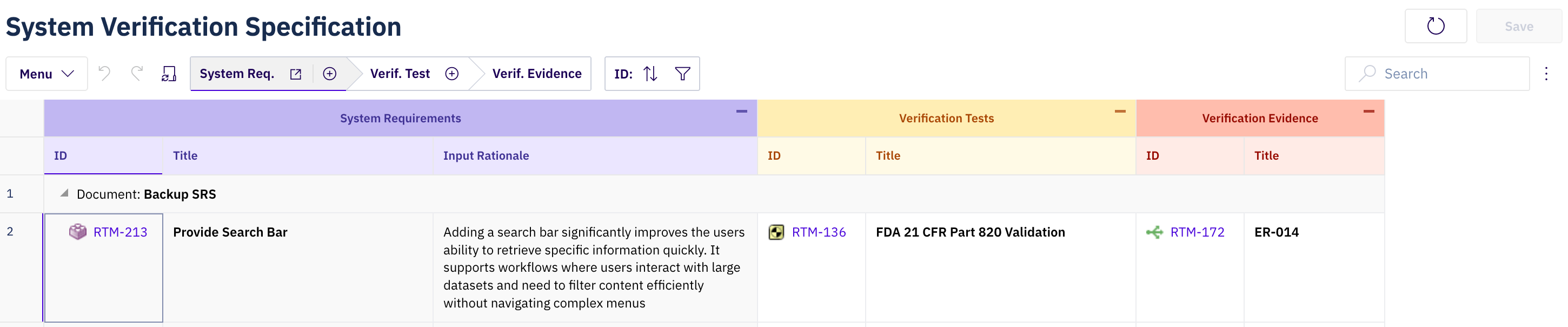
Model-Driven Permissions (MDP) is a metadata-driven system where permissions are defined in YAML domain models.
1. Entity (Type-Level) Permissions
Control CRUD operations on entire work item types. Defined in the domain model YAML
domainModelTypes:
  SystemRequirement:
    updatable: false
    readable: true
    creatable: false
    deletable: false
Defaults (when not specified)
- readable = true
- all others = false
updatable: false
- User may no longer update any fields
- Both Title and Input Rationale will be read-only for user
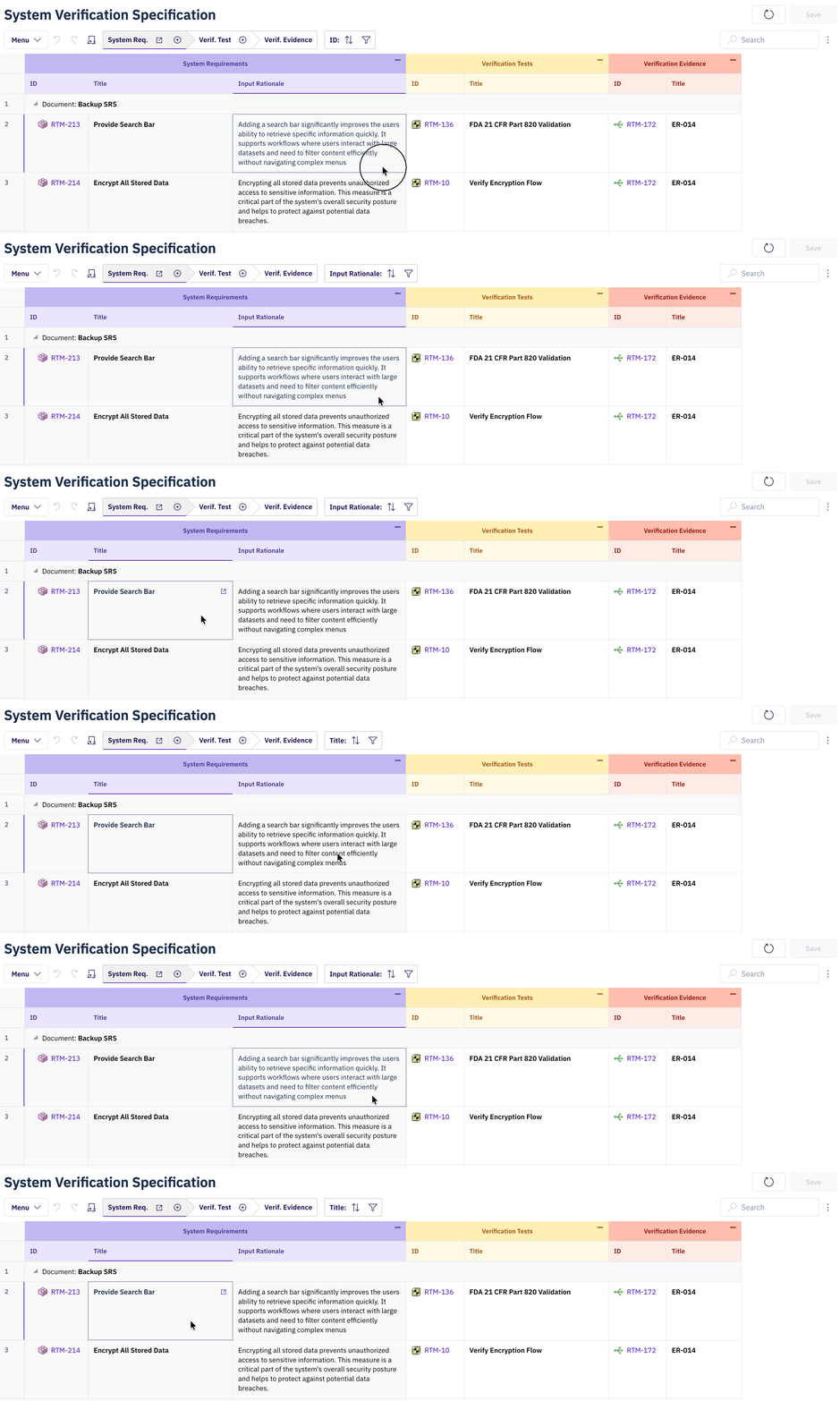
readable: false
- User may no longer see this Work Item type
- There will be an icon indicating that the column is hidden from user

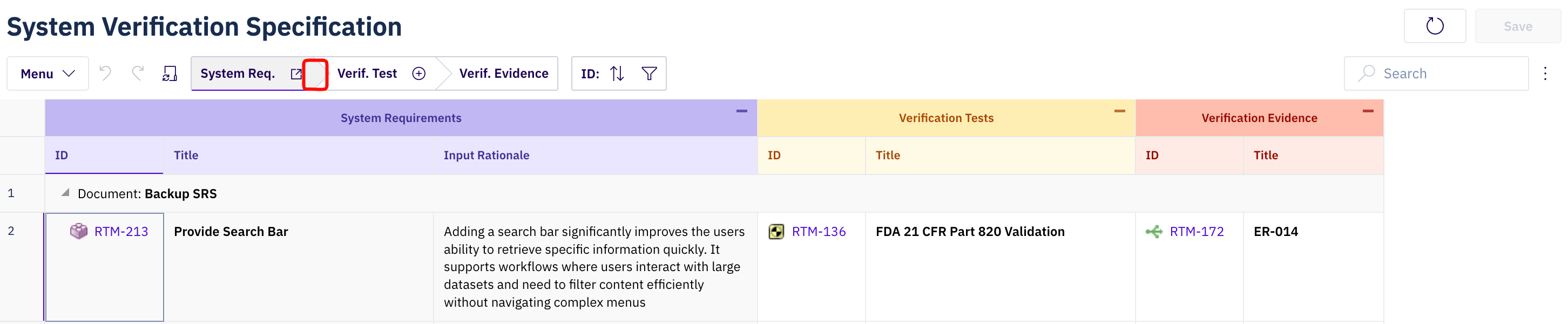
creatable: false
- User may no longer create/add this Work Item type
- + button is now missing from System Req.
2. Property-Level Permissions
Control read/write access on individual fields:
properties:
  description:
    readable: false
    updatable: true
Defaults (when not specified): readable = true, updatable = false
updatable: false
- User may no longer update this specific field (description)
- The Input Rationale column (description) is read-only, while the Title column is still editable
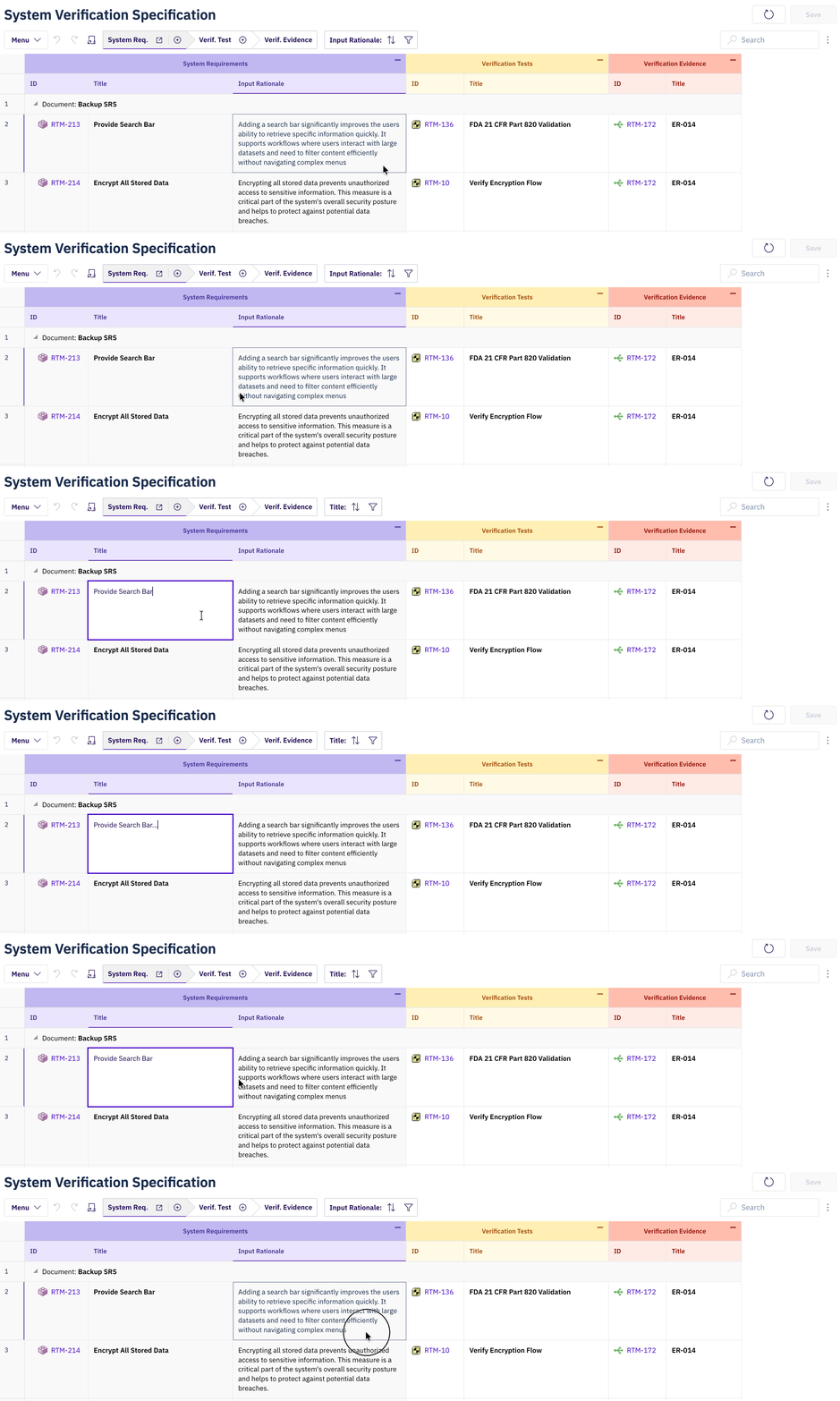
- The user may no longer see this specific field
- There will be an icon indicating that the column is hidden from the user

3. Relationship-Level Permissions
Control whether users can link (create) or unlink (delete) connections between work items in the sheet.
relationships:
  - from: SystemRequirement
    to: UserNeed
    cardinality: many-to-many
    storage: linkedWorkItems
    linkRole: decomposes
    creatable: false      # Cannot create new links
    deletable: false      # Cannot remove existing links
  - from: UserNeed
    to: UseStep
    cardinality: many-to-one
    storage: linkedWorkItems
    linkRole: relates_to
    direct:
      name: useStep
    back:
      name: userNeeds
    creatable: false      # Cannot create new links nor remove existing links
    deletable: false      # Cannot create new links nor remove existing links
How it works:
- Many-to-Many (M:N)
- Creatable and deletable are evaluated independently — you can allow unlinking while blocking linking, or vice versa
- Many-to-One (M:1)
- The relationship is treated as locked (non-editable) if either creatable or deletable is false
Default
- User may create/link/unlink Verification Tests
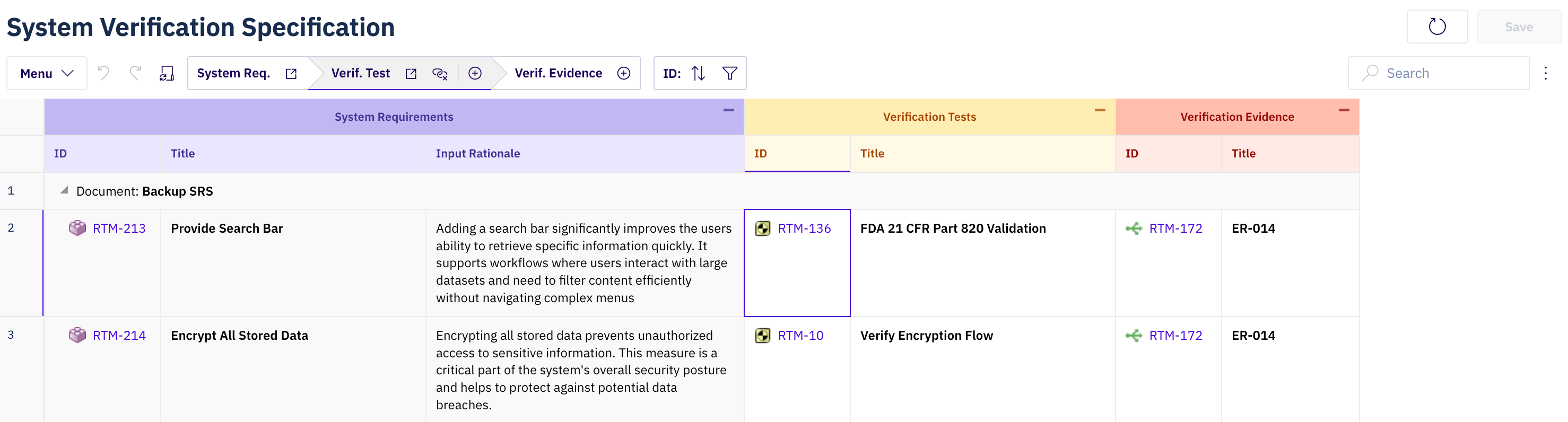
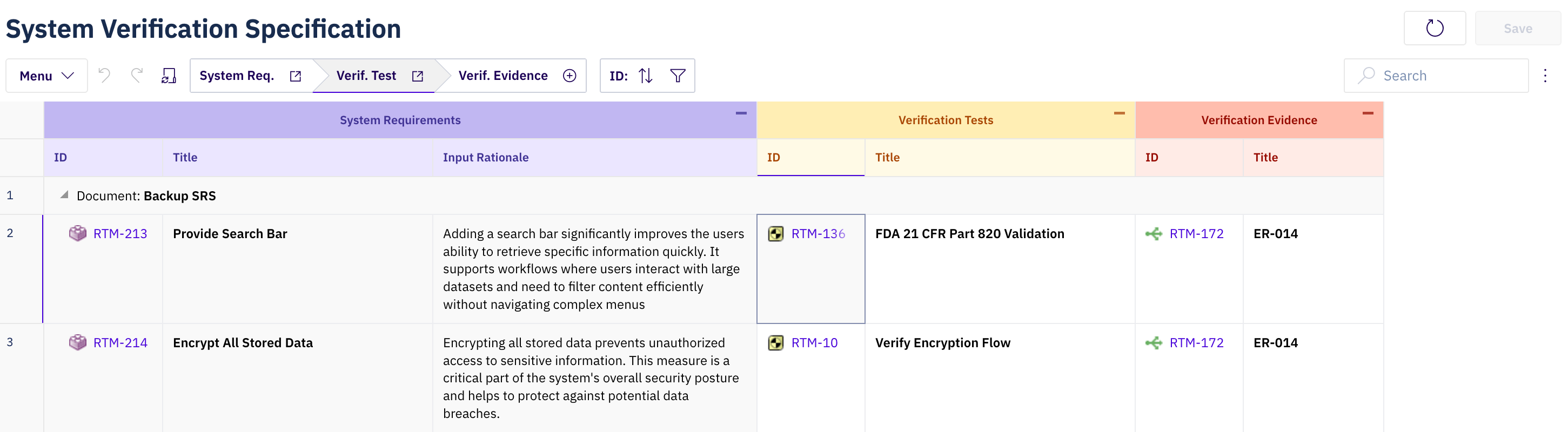
creatable: false
User may no longer create or link Verification Tests
deletable: false
- User may no longer unlink Verification Tests
The buttons for both these actions will be hidden from the bar
Additional use cases
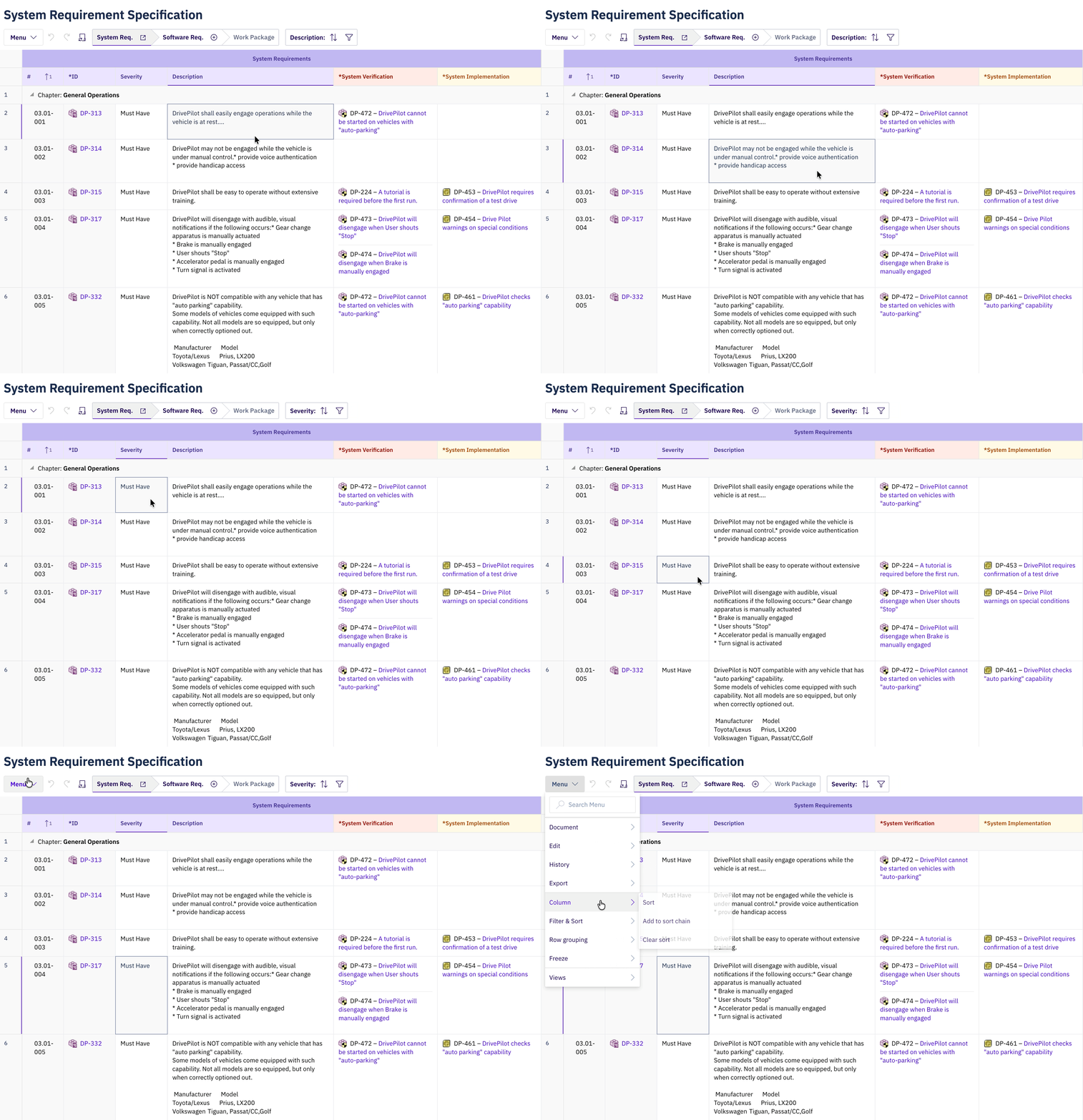
Read-only user
- User unable to edit
- Configuration not available in the menu
Data Permissions
Data permissions are enforced per-item and per-property permissions dynamically — based on Polarion custom sets, workflow state, and document approval status.
Key characteristics:
- Includes all metadata permissions
- Cannot relax or weaken metadata-level permissions
Polarion Permission Evaluation Model
Polarion's permission evaluation is multi-layered and cumulative. The following rules are relevant for Powersheet behavior:
- Multiple Roles Are Evaluated Together
- A user may have multiple roles (Global, Project, Dynamic)
- All assigned roles are evaluated in parallel — no role has inherent priority over another
- Project Overrides Global
- Project-level permission settings override Global settings
- If Global = GRANT but Project = DENY → the effective result in the project context is DENY
- Custom Set Overrides Generic Permission
- Custom Set permissions (e.g., based on status, document type, or workflow state) override generic permissions
- A GRANT in a Custom Set applies only to items matching that condition
- A generic DENY does not block a more specific Custom Set GRANT
- GRANT Overrides DENY on the Same Level
- If a user receives both GRANT and DENY for the same permission at the same scope level, GRANT takes precedence.
- Example:
- User has role: project_user → DENY MODIFY
- User has role: project_assignable → GRANT MODIFY
- Result → user can MODIFY
- Dynamic Roles Are Contextual
- Some roles are assigned dynamically (e.g., author of a Work Item). These roles participate in permission evaluation the same way as static roles
- Global Admin Is Absolute
- The global_admin role always has all permissions granted — this cannot be overridden at the Project or Custom Set level
Practical Implication for Powersheet
The effective permission for any given action is the result of:
- All assigned roles
- Scope resolution (Global vs. Project)
- Custom Set overrides
- GRANT precedence over DENY
Powersheet assumes that permission outcomes are the result of this layered resolution and does not simplify or reinterpret it.
Known Limitations
These are limitations that have not yet been addressed, but overall do not make a big impact on the usability of Powersheet.
1. Block linking new work items to frozen (approved) documents
Prevent users from linking or creating new work items into documents that are in a frozen state (e.g., approved, reviewed), and clearly communicate why the action is blocked.
Adding work items to approved documents violates document integrity and compliance workflows. The current behavior lets users go through the full creation/linking flow before the backend rejects the action — wasting time and eroding trust. Blocking this upfront preserves document governance and avoids dead-end interactions.
2. Interactive controls for work item types that the user can't access should not be shown
When a user's role lacks read access to a type, the type simply returns zero results from queries — it doesn't announce itself as "unreadable" in the metadata.
Today, the UI treats this as a data problem (empty result set), but the expected UX requires treating it as a permission signal: if a type never returns data for the current user, the picker and "+" button for that type should be proactively disabled rather than appearing interactive but always empty.
3. Enum caret should not be visible if not readable/editable
The enum caret (dropdown indicator) is currently displayed even when the field is not readable or editable due to permission restrictions. This creates a misleading affordance, suggesting that the user can interact with or modify the value when they actually cannot.
4. Read-only cell is indicated differently than read-only column is not supported
The current indication (subtle grey background) is applied based on column configuration. If cells in column are editable by default and only individual cells are read-only based on data-driven permissions then they should have the same read only styling.
For any assistance, please don't hesitate to reach out by submitting a ticket here.
Was this article helpful?
That’s Great!
Thank you for your feedback
Sorry! We couldn't be helpful
Thank you for your feedback
Feedback sent
We appreciate your effort and will try to fix the article